Before uploading your first episode you need to create your podcast. Check out our guide on setting up your first podcast.
Once your podcast is set up, you’re ready to upload your first episode.
To start, open the Episodes tab and click New episode. On a new account, you can also click Publish episode on the Get started checklist.

Now, let’s fill in the episode details:
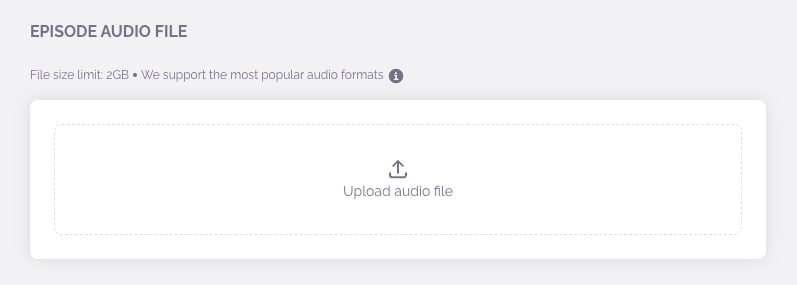
1. Add your audio file (required).
- Maximum audio file size: 2 GB. On the Max plan, a video file can be up to 5 GB (see How to add video to your podcast episodes).
- Recommended format: mp3. You can learn more about which audio file formats does RSS.com support.
- File name: use simple names like "episode1.mp3", "episode2.mp3" etc ...
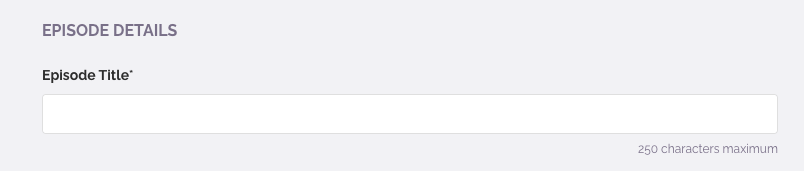
2. Add your episode title — keep it clear and engaging to attract listeners.
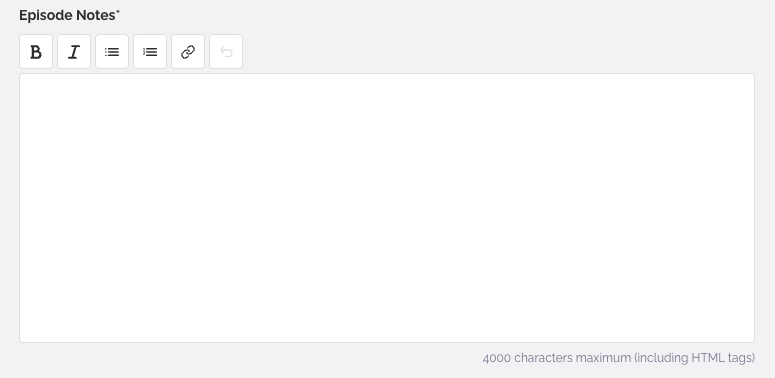
3. Add your episode notes — this is your episode description to let your audience know what to expect.
4. Add Season number and Episode number. Not sure whether your podcast is Serial or Episodic? Check out the difference between Serial and Episodic.

5. Select the episode type — choose whether this is a full episode, trailer, or bonus content. Check out the difference between these options.

6. Answer "Does this episode include Explicit content?". If any published episode is marked as explicit, your whole show is marked as explicit (see How to change the explicit status). Then answer "Does this episode include AI content?". Disclose AI when it is the performer, such as a synthetic voice, narration or hosts, not when it is only a production tool, such as editing, music or notes. Learn more in Guidelines for labeling AI-generated content.

7. Add episode keywords (optional, up to 10). They appear as tags on your RSS.com episode page and aren't sent to directories, so put your key terms in the title and description.

8. Add cover art for this episode (optional, but recommended). Use an image made for this episode, such as a photo of your guest or an image of the topic. If you leave it empty, apps show your show cover. Don't upload a copy of your show cover. Apple Podcasts would show two identical squares (see why episode art should differ from your show cover). Make sure to check the cover art formatting requirements or learn how to create a great cover art.

9. Wait until your audio file is uploaded, and then click "Save Draft" to continue.

10. When your episode is saved, it will appear in your "Draft Episodes" section. You will then have an option to either schedule it, or publish it immediately.
You can also go back to editing if you click the three dots on your right side.

And we’re done here! Next up, learn How to Create Podcast Episodes Your Fans Will Love.
Was this article helpful?
That’s Great!
Thank you for your feedback
Sorry! We couldn't be helpful
Thank you for your feedback
Feedback sent
We appreciate your effort and will try to fix the article