After creating your RSS.com account, follow these steps to create your first podcast.
1. On the Get started checklist, click Create podcast. If you already picked a plan, click New podcast instead.
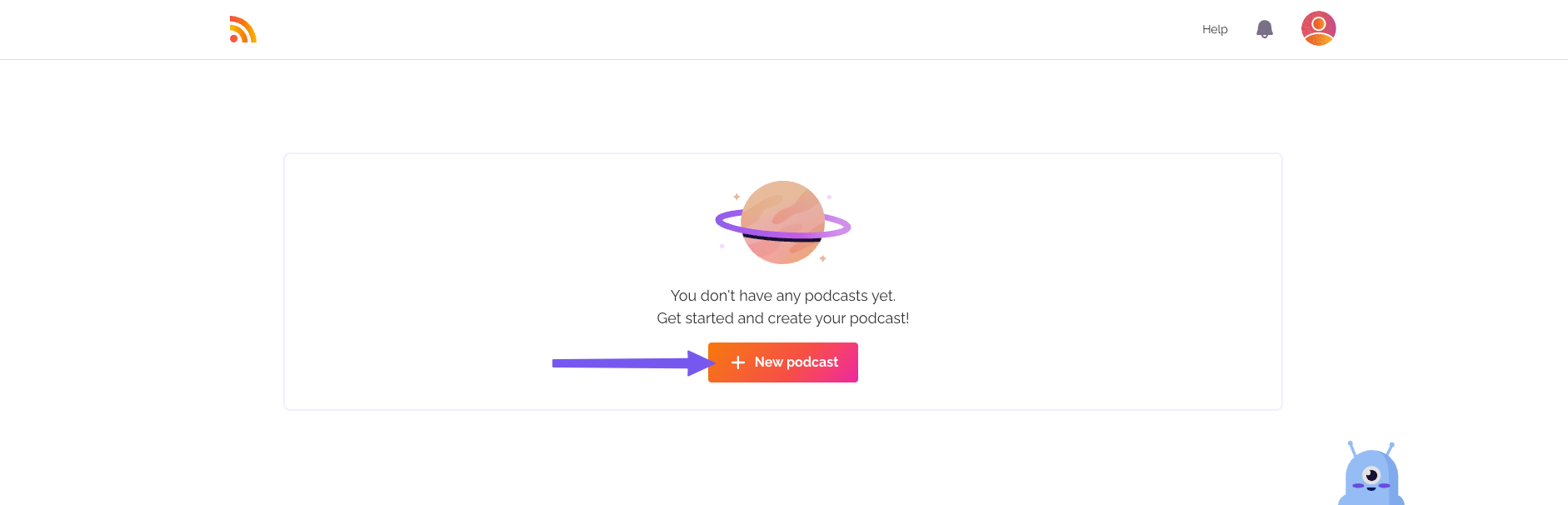
2. Now we're going to personalize your podcast! Fill in the following details:
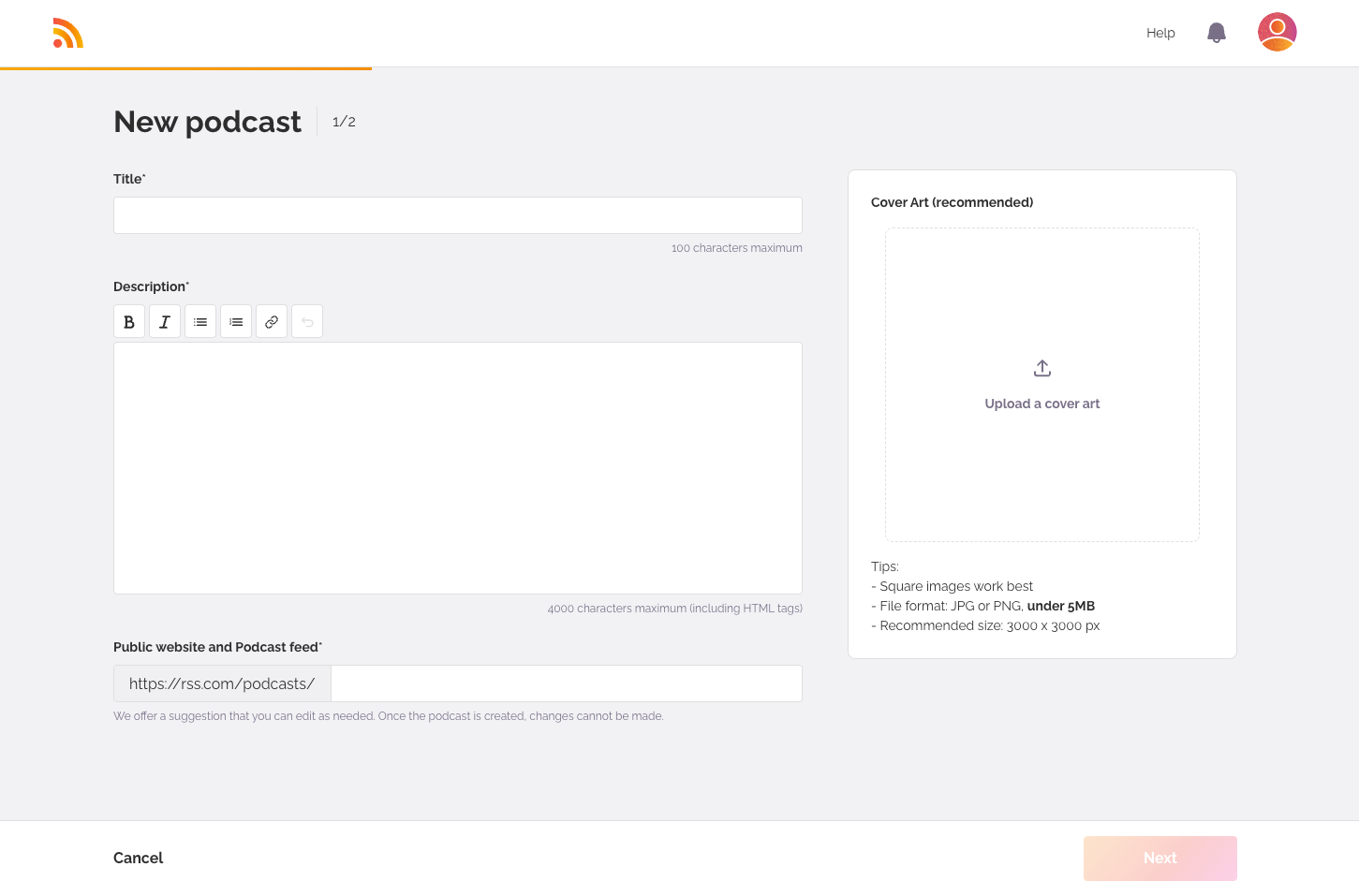
Podcast Title – Choose a name that reflects your show’s theme and content.
Description – Write a brief, compelling summary of what your podcast is about. This helps potential listeners decide to tune in. To learn more, check our recommendations for creating a great podcast title and description.
Public Website and Podcast Feed – This one field sets two addresses: your public website, https://rss.com/podcasts/my-awesome-new-podcast, which you share with listeners, and your RSS feed, https://media.rss.com/my-awesome-new-podcast/feed.xml, which podcast apps and directories use. We automatically suggest a URL for you, but you can customize it if you want. Choose carefully, because you can't change it after your podcast is created. Check out our URL guidelines to ensure your link meets requirements.
Cover Art – Upload an eye-catching image to represent your podcast across all platforms, including Apple Podcasts and Spotify. See our cover art guidelines for formatting tips.
Once all required fields are filled out, the “Next” button will become active, allowing you to continue setting up a few more details.

3. Setup the podcasts details
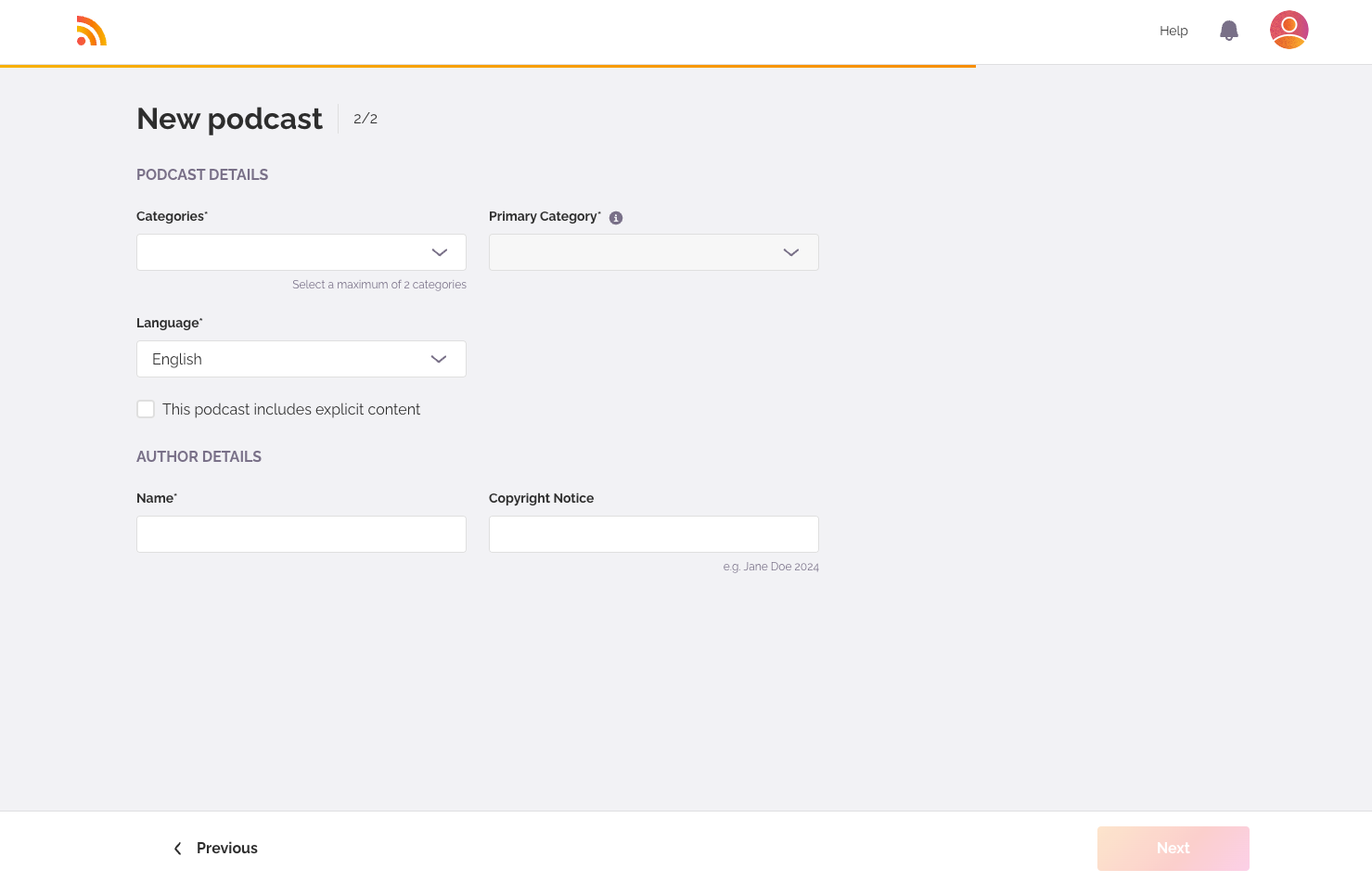
Categories help listeners discover your podcast at distribution platforms like Spotify or Apple Podcasts. You can select up to 2 categories, but your Primary Category is the most important because Apple Podcasts will only index your show under your Primary Category.
Choose categories that best match your content to improve visibility and attract the right audience.
Next up, a few more details:
Language – Select the primary language of your podcast.
Explicit content is set on each episode, not on the podcast. See How to change the explicit status.
Author Name – This is typically your name or your brand’s name. It will be displayed in podcast directories.
Copyright (optional) – This section defines ownership of the podcast. Don't stress over it, most users enter their own name here, but if you have legal concerns, we recommend researching copyright licensing.
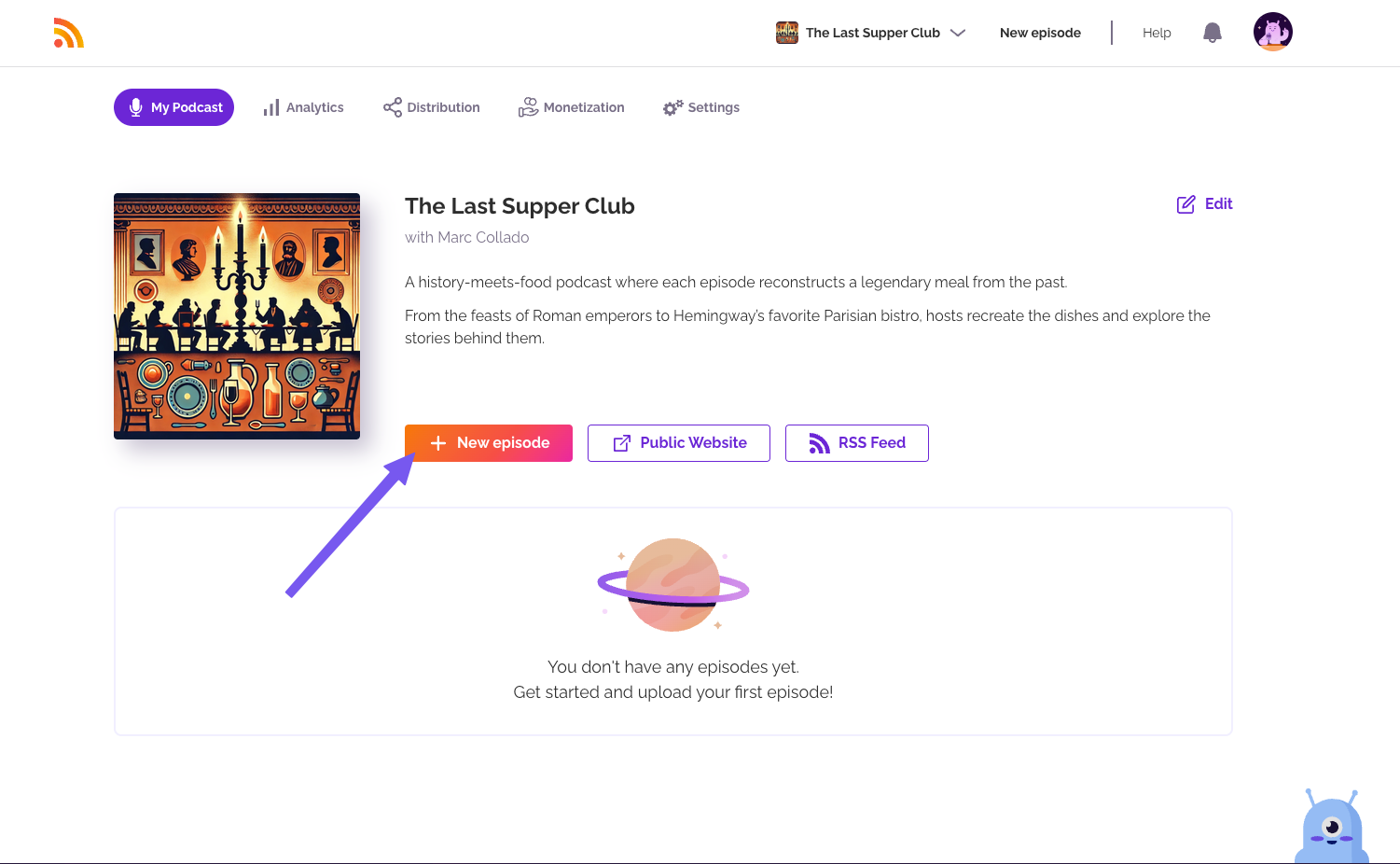
Once all required fields are completed, the “Next” button will activate. Click it, and congratulations, your podcast is officially created!

4. Your podcast is ready, and now it is time to upload your first episode.
Was this article helpful?
That’s Great!
Thank you for your feedback
Sorry! We couldn't be helpful
Thank you for your feedback
Feedback sent
We appreciate your effort and will try to fix the article