At RSS.com, we want to make it as easy as possible for you to manage and share your podcast content. You can copy the transcript of any episode that has one. These transcripts can enhance accessibility, improve your podcast’s SEO, and provide a text-based reference for your audience.
Here’s how to copy your (previously created) episode transcript.
Step 1: Open the Episodes tab of your podcast.
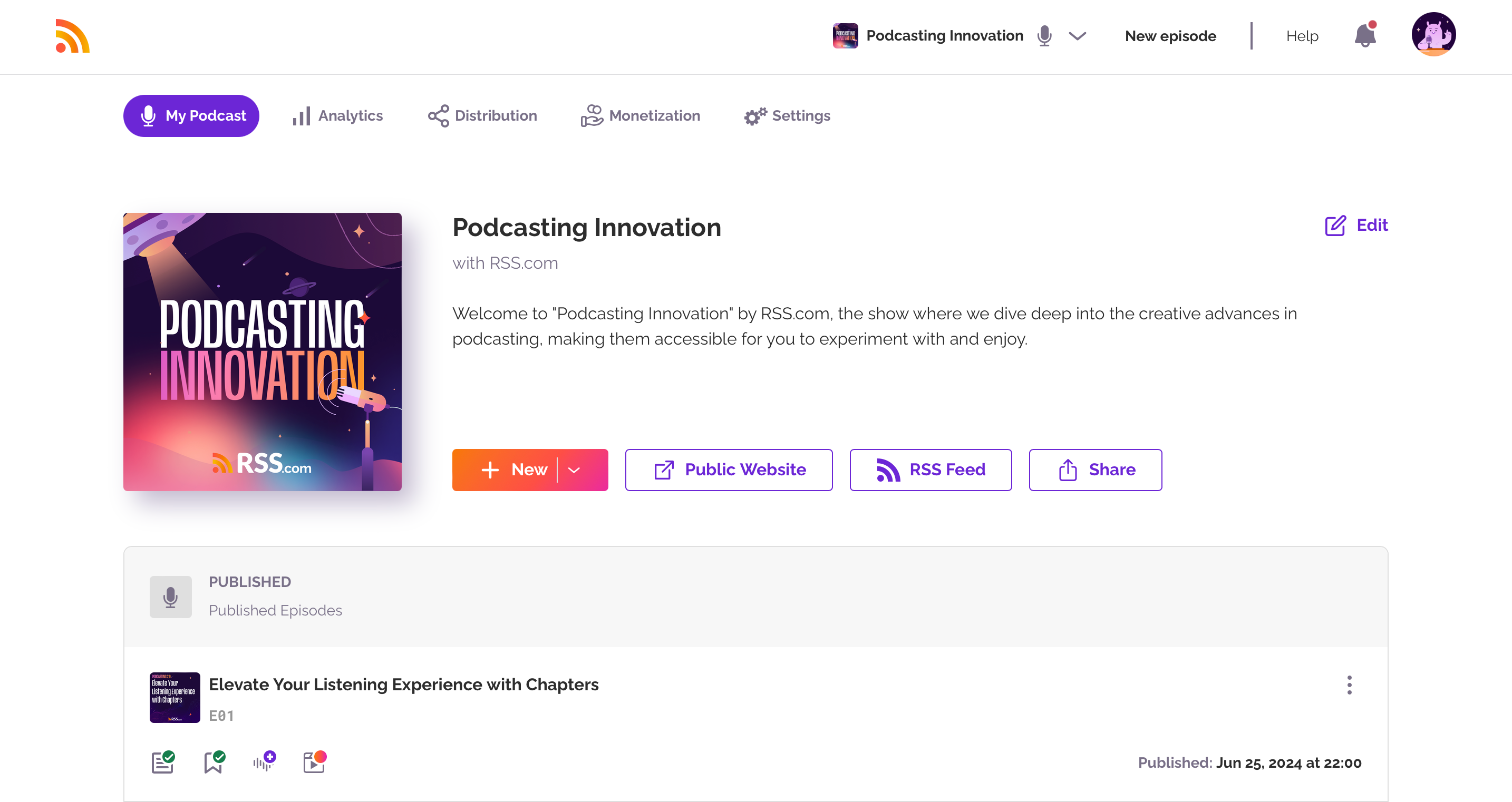
Step 2: Find the episode whose transcript you want to copy and click its transcript icon.
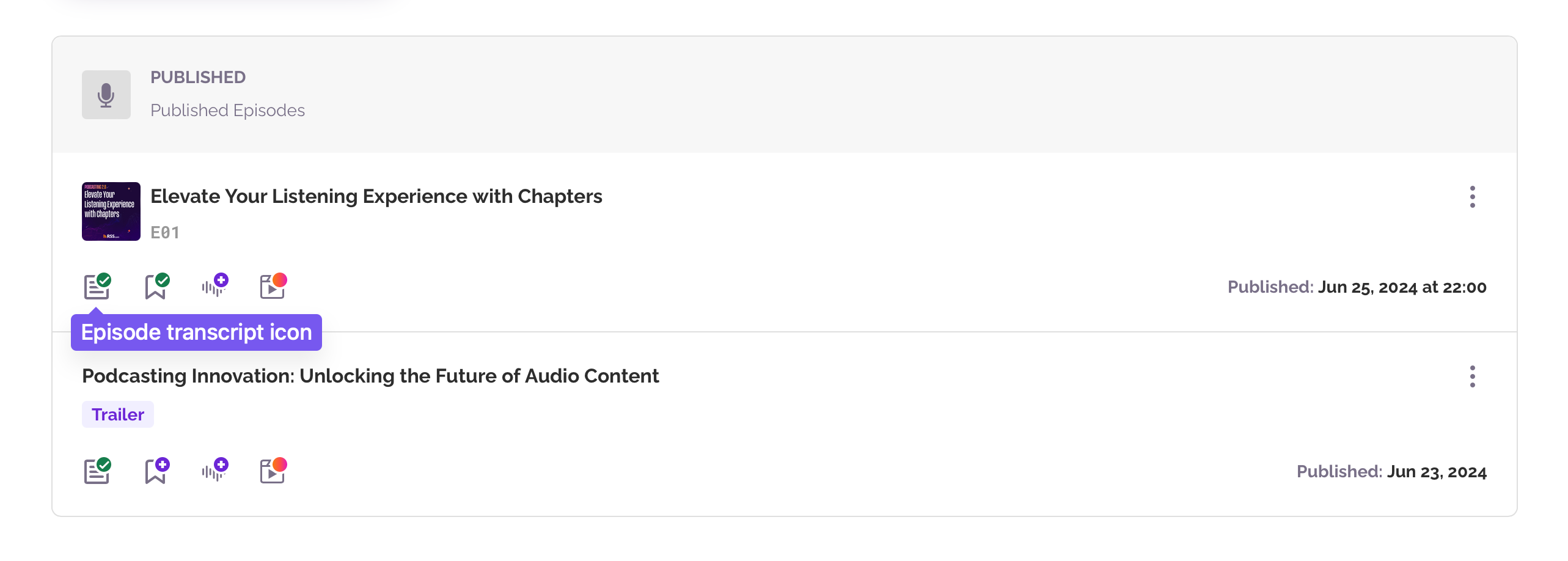
Important: You can only copy a transcript if it has been previously generated — either automatically using our transcription tool or manually uploaded. If you haven’t done this yet, please take a moment to learn how to create or upload your transcript first.
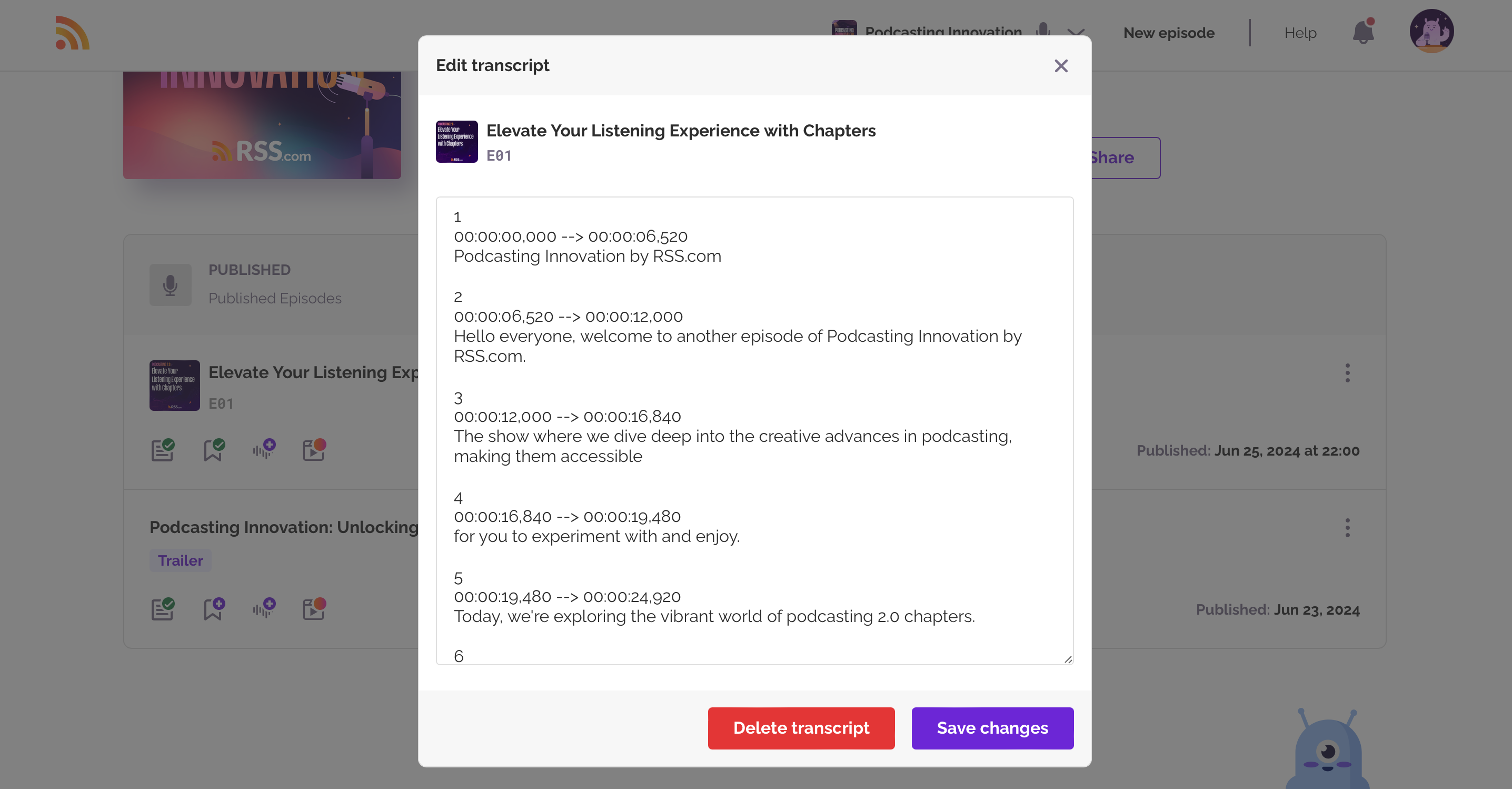
Step 3: The “Edit Transcript” modal will open. Select the text in it, then copy and paste it into your preferred tool. There is no download button.
Note on Transcript Formats
- Transcripts can exist in various formats.
- Our automatic transcription engine generates them in the VTT format.
- VTT files include timestamps that align the text with your audio, which is great for video or subtitle use but may not always be necessary for other purposes.
- New transcripts on RSS.com must be VTT. Older plain text (.txt) and SRT transcripts stay in your feed.
Removing Timestamps from VTT Transcripts
If your transcript is in VTT format and you prefer it without timestamps, there’s an easy solution. You can remove the timestamps using a free online tool like TimeWipe.
By following these steps, you can easily manage and customize your episode transcripts, making them work best for your needs.
Was this article helpful?
That’s Great!
Thank you for your feedback
Sorry! We couldn't be helpful
Thank you for your feedback
Feedback sent
We appreciate your effort and will try to fix the article