Transcripts are simply text versions of your audio episodes. Transcripts can be used in a number of ways including improving search engine optimization (SEO) and providing better access to hard of hearing listeners. The instructions below will show you how to auto-generate and add a transcript to your podcast episode.
1. Create a new episode or open an existing one without a transcript, then click the transcript icon.
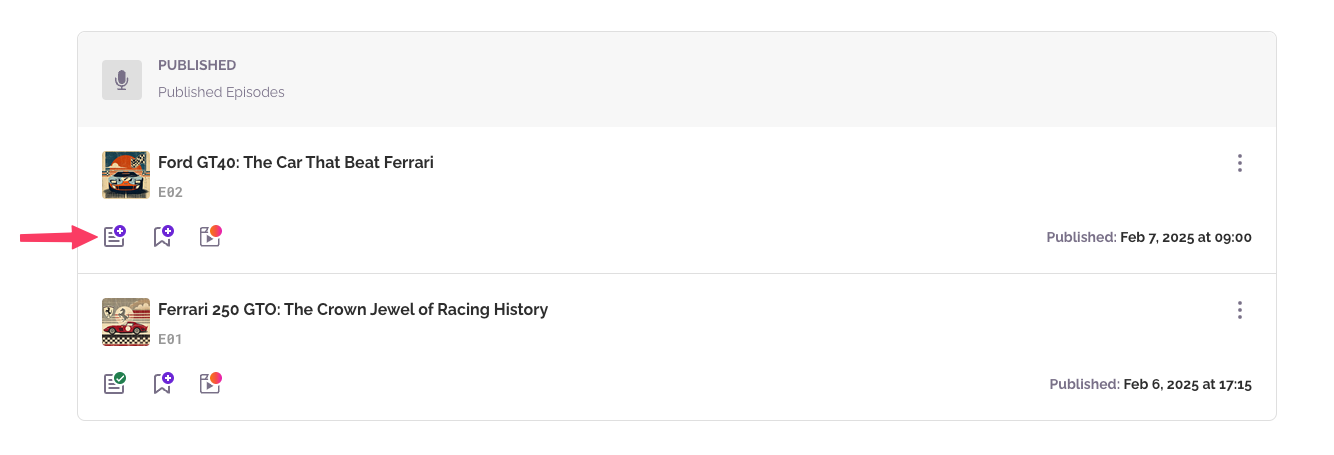
2. Choose to generate an AI transcript or add your own. AI transcripts come with Plus, Pro and Max, and Pro and Max can also create one for every new episode automatically. Your own transcript works on every plan, Free included: paste it into the box as WebVTT text.
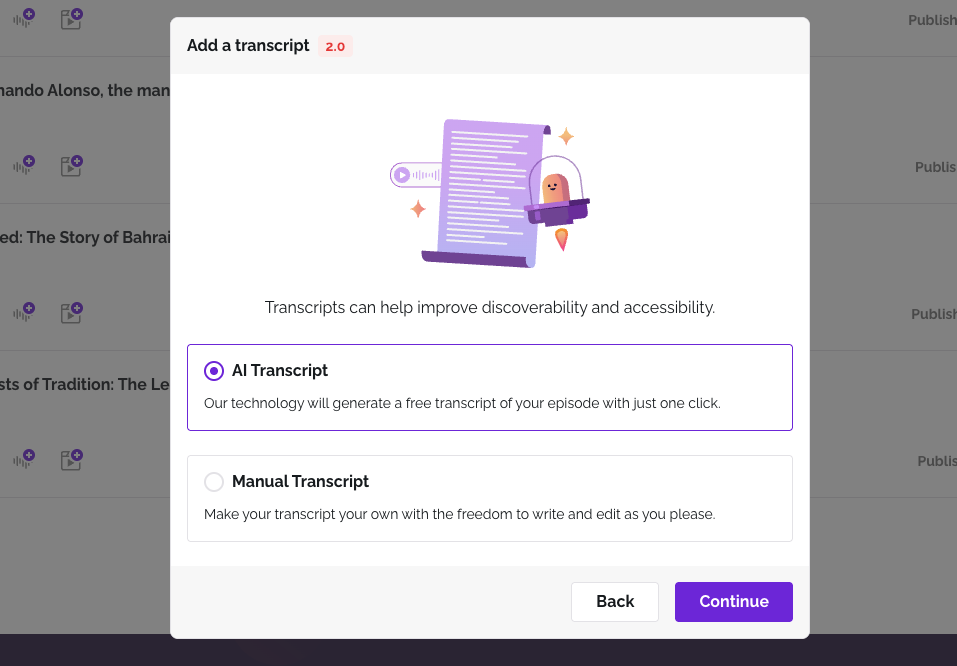
3. In the case of an AI generated transcript, pick the desired quality.

4. Sit back, and wait until the process is finished — we'll send you an email once it is done.

While the transcript is being generated, the status indicator will keep spinning.
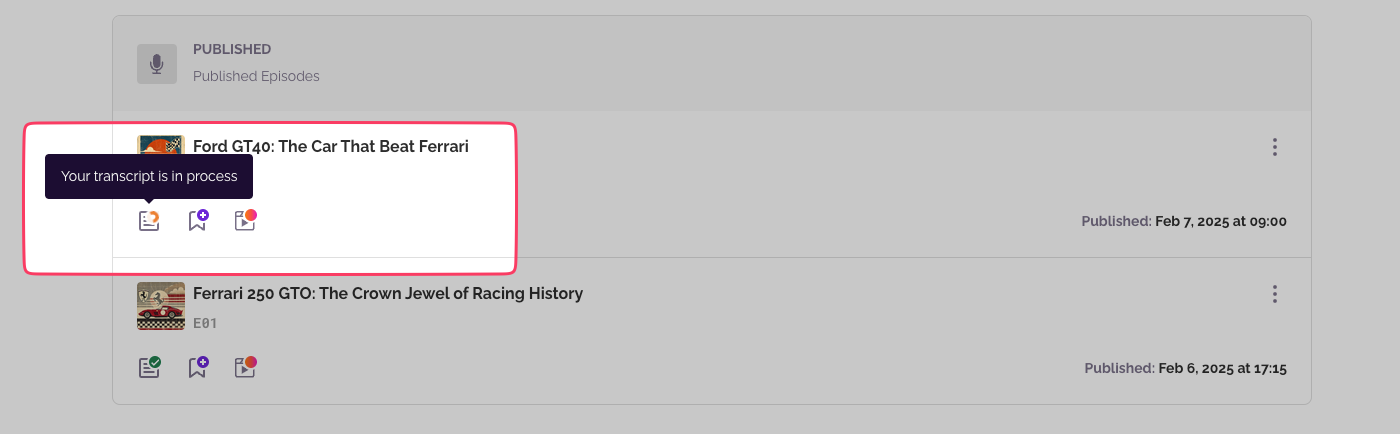
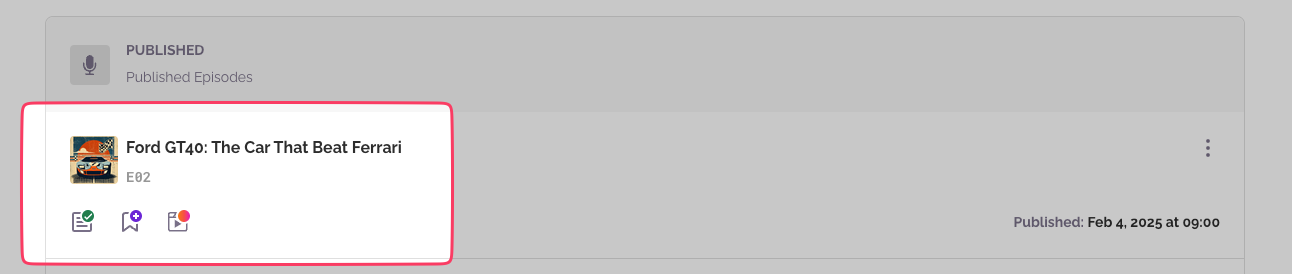
5. Once the process has finished, the episode will be up for review. At this point the transcript is not published yet.

6. To publish a transcript, tap again the transcript button, review if the auto transcript is OK, and then click "Save and accept transcript".

7. At this point, your transcript will be ready, published and available at your episode.
Was this article helpful?
That’s Great!
Thank you for your feedback
Sorry! We couldn't be helpful
Thank you for your feedback
Feedback sent
We appreciate your effort and will try to fix the article