Creating and releasing a podcast can be a big job! Sometimes you need a whole team to assist. With the RSS.com "Collaborators" feature, Account owners can invite their whole team to have access to their RSS.com podcast account!
I've been invited to collaborate. What now?
An RSS.com user on Plus, Pro or Max can invite you to be a collaborator on their podcast with your email address. You will receive an email notifying you of the invite. What it asks depends on whether that address already has an RSS.com account:
- If it does, the email says you can use your existing login. Click Sign in and accept, sign in, and accept the invite on your account's front page.
- If it doesn't, you first sign up for your own free RSS.com account. You can accept an invitation to collaborate without having a subscription yourself. Click Sign up and accept to begin.
[Disclaimer: Users have ten days to accept a collaboration invite. If a user rejects an invitation, the owner will not be able to invite the user a second time]

Signing up for an account
The "Sign up and accept" button will take you to the RSS.com sign up page. Enter your email address and pick a password, then press "Get started for free" If you already have an RSS.com account, click "Sign in here" to login to your account.
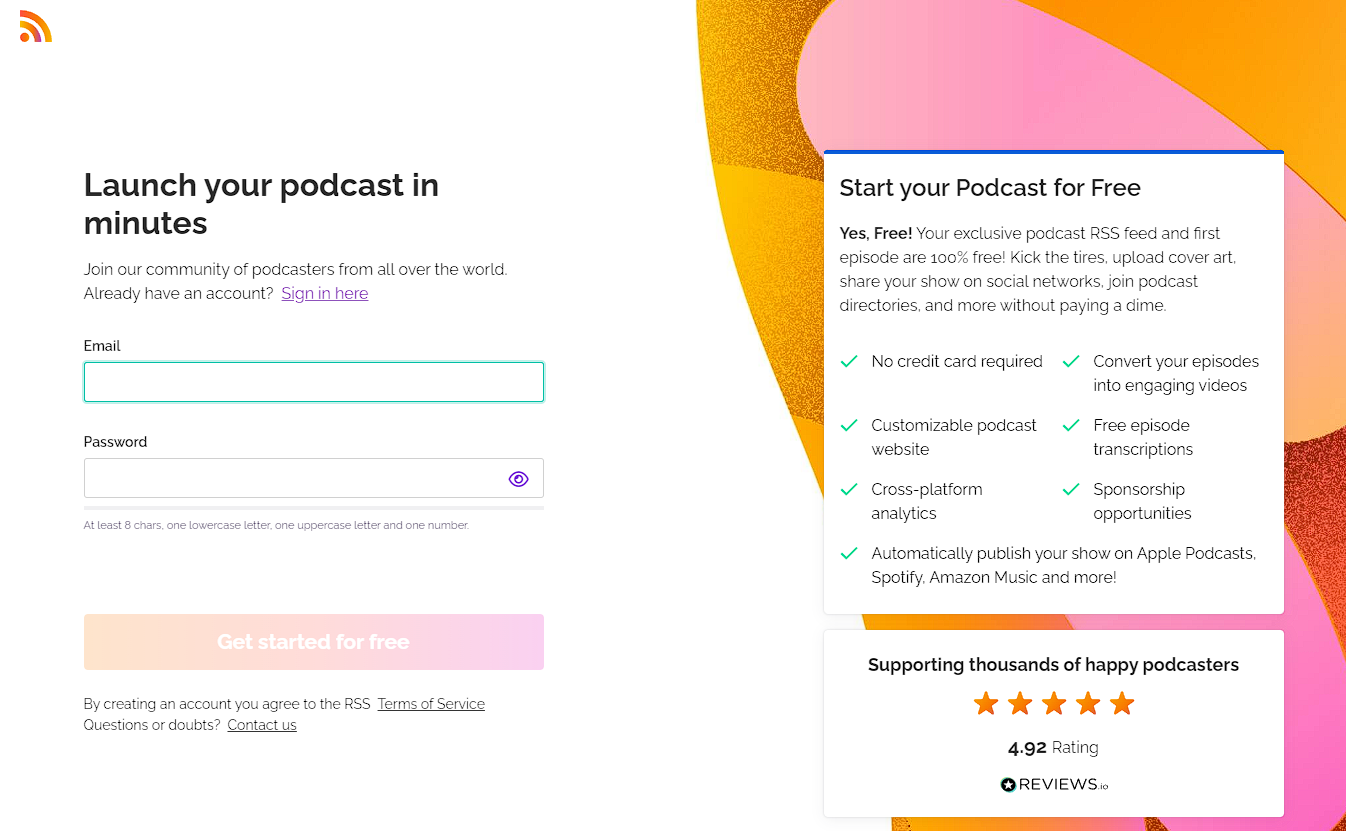
Once you are signed up and logged in, you will be taken to your account front page. From here you can start your own podcast. This is also where you can accept any invitations you've received to collaborate on other podcasts. Click "Accept" to add the podcast to your account.

Types of collaborators
There are three different roles you can be assigned as a collaborator:
Owner: The Owner of the RSS.com account is automatically assigned as the Owner.
Admin: Can manage episodes, access analytics, and edit settings (including the Apple Podcasts key), YouTube settings, and value4value wallet information.
Analyst: As an Analyst, you can view and export analytics.
More articles on "Collaborators"
The RSS.com "Collaborators" Feature
Adding a Collaborator to Your Podcast
More helpful articles
How do I upload my first episode?
How to automatically submit my podcast to all the podcast directories?
Was this article helpful?
That’s Great!
Thank you for your feedback
Sorry! We couldn't be helpful
Thank you for your feedback
Feedback sent
We appreciate your effort and will try to fix the article