If your podcast reached Spotify through our automatic distribution, you still need to claim it to get a Spotify for Creators account with your stats in it.
Spotify sends a code to the email address in your RSS feed, and RSS.com hides that address by default. Add it to your feed first. Open Settings, find Email Visibility, type an address you can open and click Enable Email. It appears in your feed within about two minutes and stays for 12 hours, so finish the claim within that time.
Log in with your Spotify account, or choose SIGN UP to create one, then:
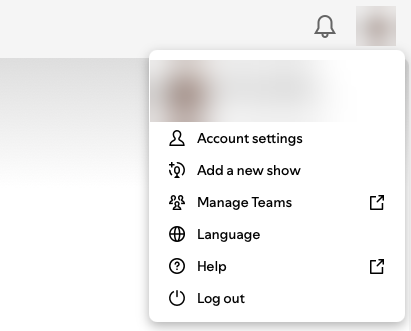
- Click your profile picture at the top right and choose Add a new show. A new account opens straight on the next screen.
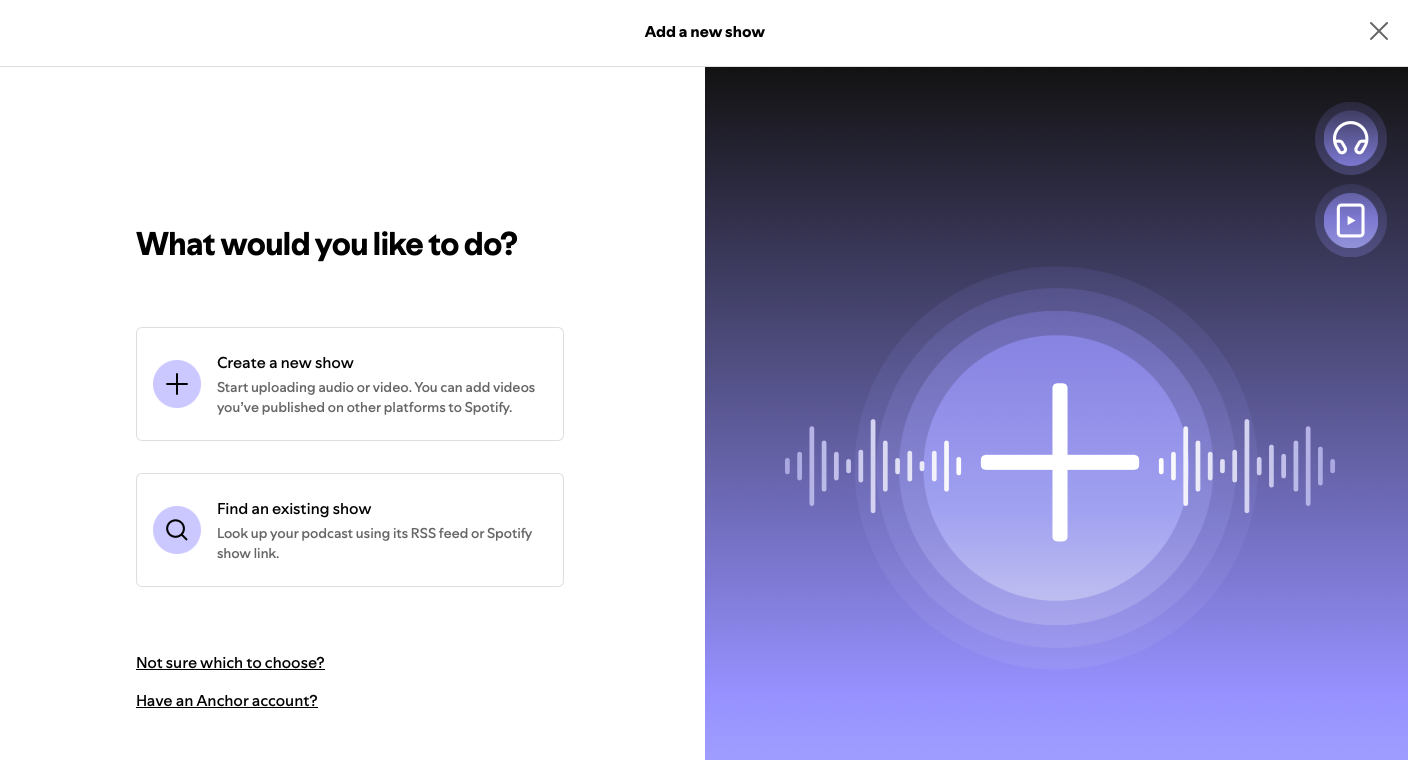
- Click Find an existing show.
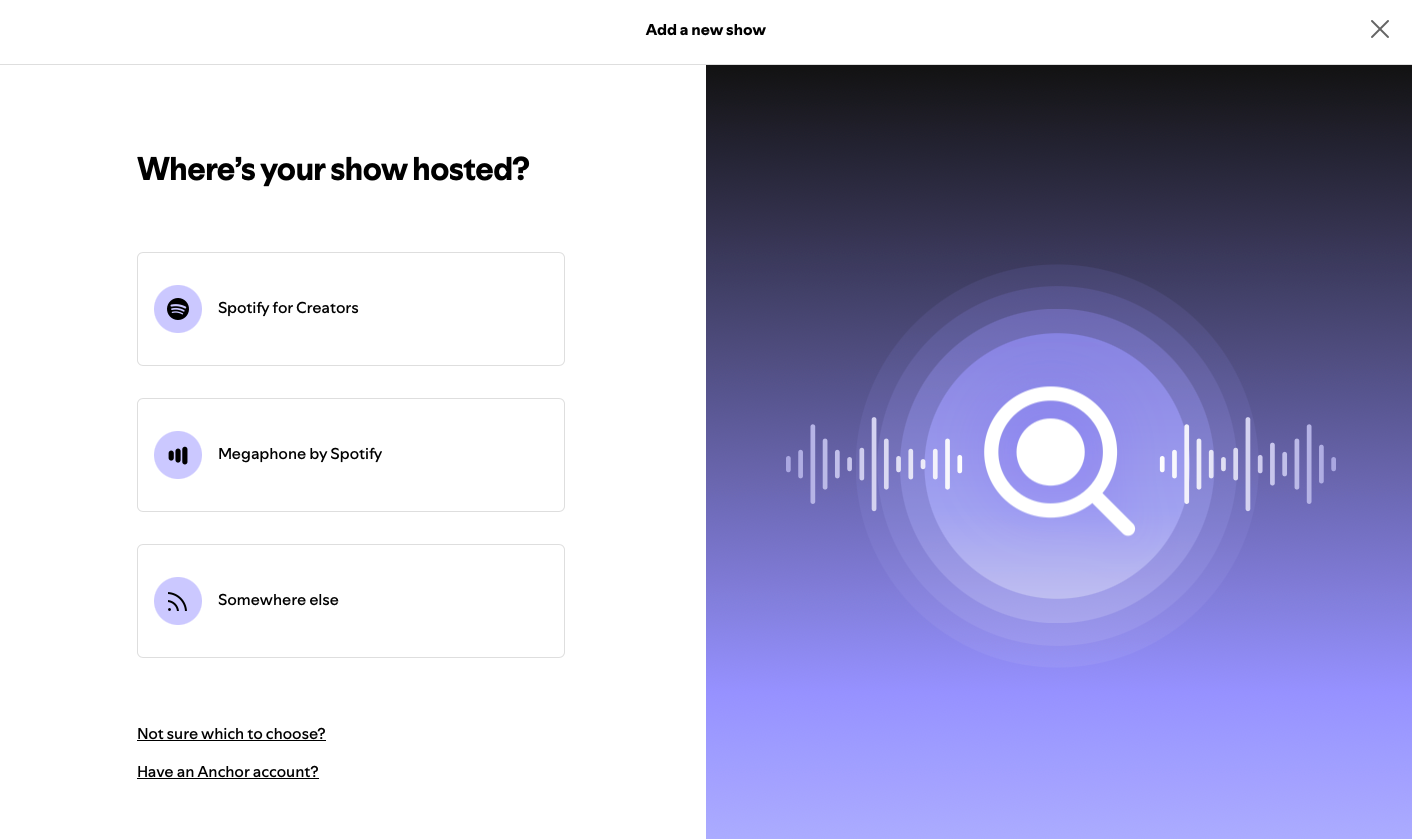
- Under Where's your show hosted?, click Somewhere else.
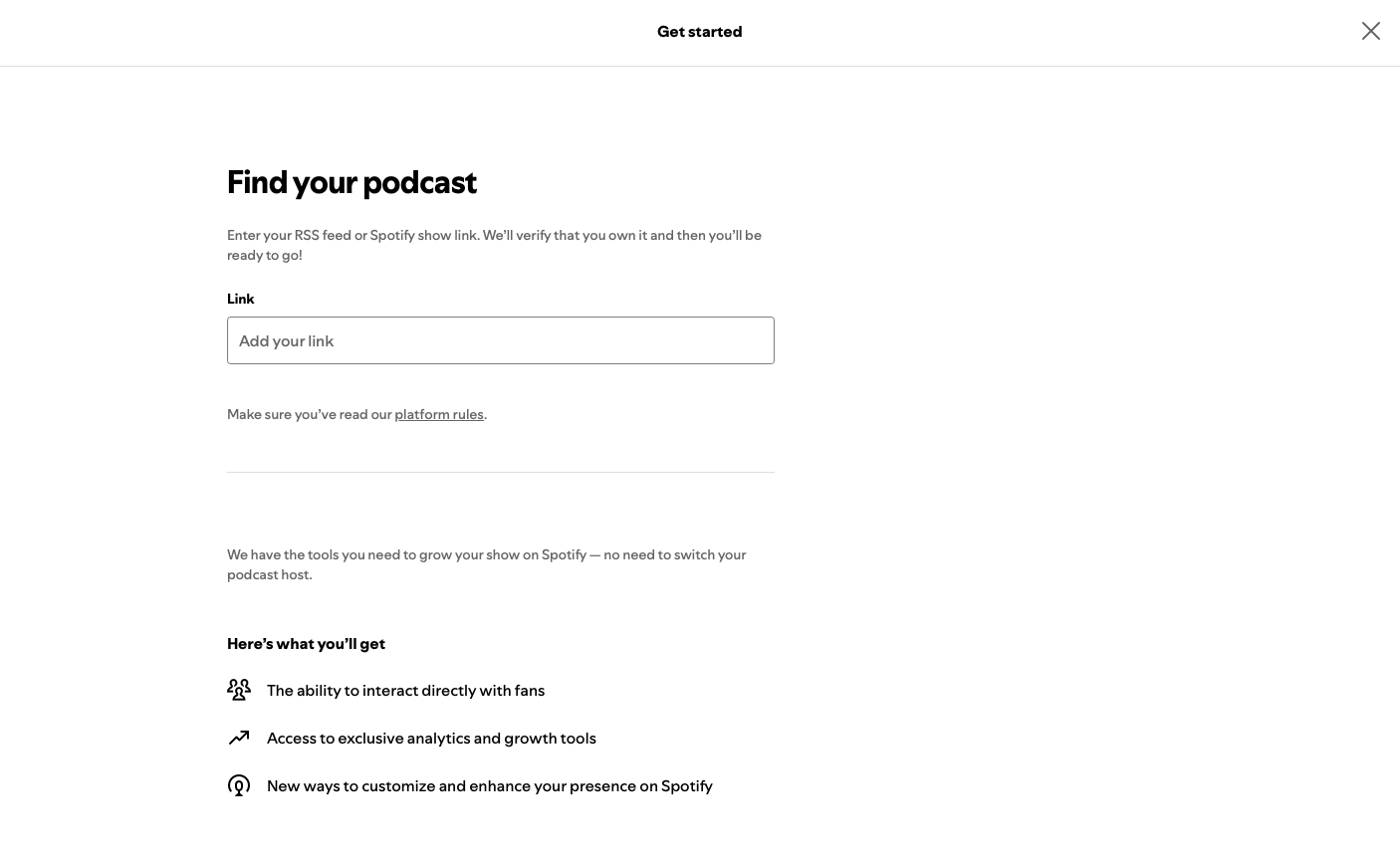
- Paste your podcast's RSS feed URL in Link.
- Spotify emails an 8-digit code to the address in your RSS feed. Paste it into the form.
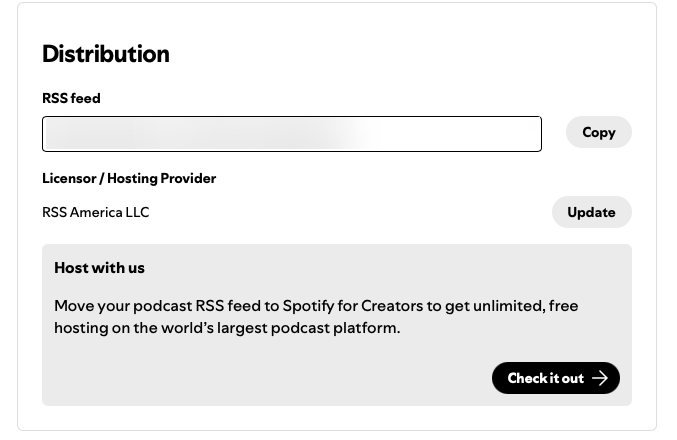
Once the show is claimed, Settings shows RSS America LLC as its Licensor / Hosting Provider, the company behind RSS.com. If you see another name, read Why can't I see Spotify downloads in my RSS.com Analytics dashboard?
Important: the code goes to the address you enabled in your feed, not to your Spotify account. If 12 hours have passed, enable it again before you retry.
Related: Enable the email address in your RSS feed · The verification email address is wrong · Spotify's support site for creators
Was this article helpful?
That’s Great!
Thank you for your feedback
Sorry! We couldn't be helpful
Thank you for your feedback
Feedback sent
We appreciate your effort and will try to fix the article