You add, edit and delete chapters from each episode's Chapters icon, on the Episodes tab. Chapters split an episode into segments that are easier to navigate. They're part of the Podcasting 2.0 namespace, and RSS.com supports them in full, including optional artwork and links.
What are chapters?
A chapter is a timed segment within your episode. You can use chapters to:
- Add structure to your episodes, which helps in interviews, long-form shows and tutorials.
- Show an image for each chapter.
- Include links that listeners can open in supported apps, for companion content, references or sponsors.
Not every podcast player supports Podcasting 2.0 chapters, but many modern apps do, including Podverse, Fountain and the RSS.com player. To see what Apple Podcasts, Spotify and other apps show, read Chapter type support across apps.
If you turn your episode into a video with PodViz (audio to video), your chapters, their titles and their images go to YouTube too.
How to add chapters
- Open the Episodes tab.
- Find the episode and click its Chapters icon. The icon appears once the episode's audio has finished processing.
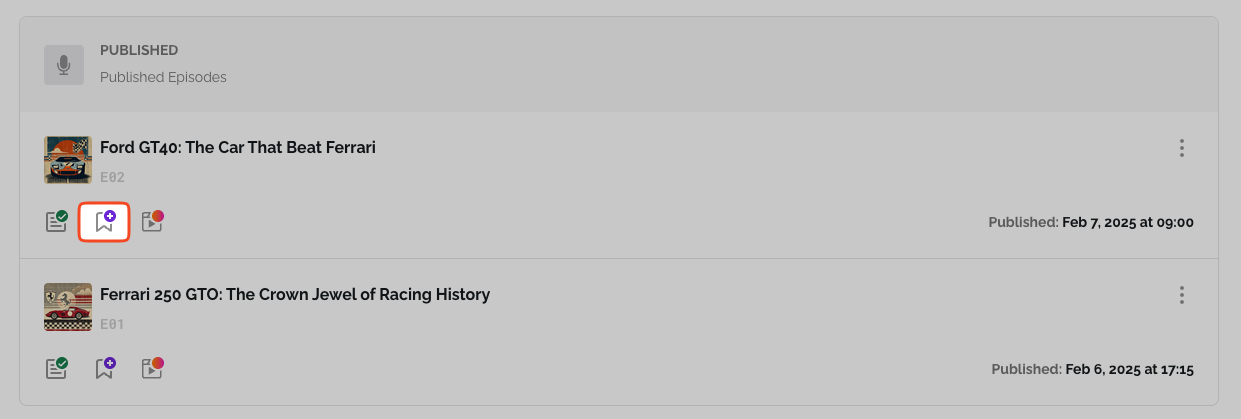
- For an episode with no chapters yet, the New chapter window opens. Once it has chapters, the icon opens the Chapters window instead, where you click Add chapter.
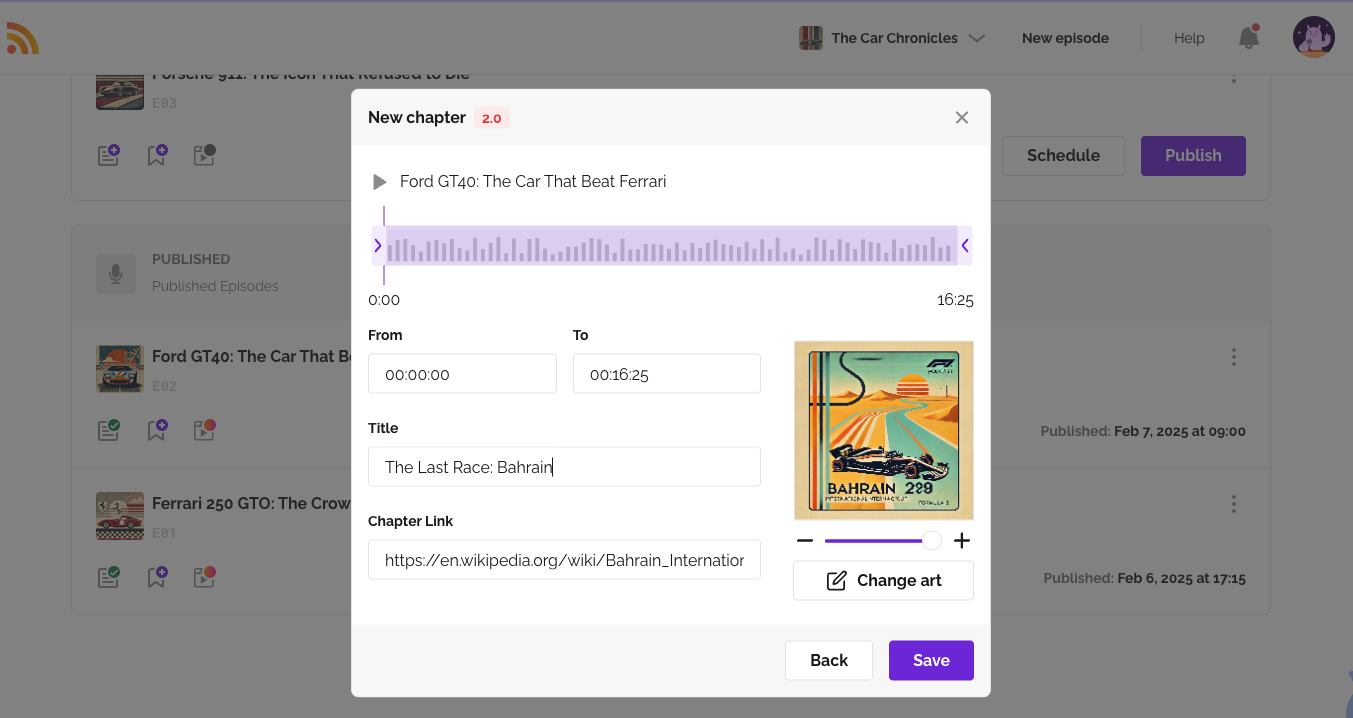
For each chapter, fill in these details:
- From sets when the chapter starts.
- To sets when it ends.
- Title is the chapter name players show, up to 45 characters.
- An image for the chapter is optional. Add it with Upload chapter art.
- Chapter Link is optional too. Add a URL listeners can open, such as an article, a song, a sponsor page or a video related to that chapter.
- Click Save. Repeat for each chapter, up to 10 per episode, then click Done.
How to edit a chapter
- On the Episodes tab, click the episode's Chapters icon.
- Click the pencil icon next to the chapter.
- Make your changes in the Edit chapter window and click Save.
How to delete a chapter
- On the Episodes tab, click the episode's Chapters icon.
- Click the trash icon next to the chapter.
- Confirm with Yes, delete it.
A deleted chapter can't be restored. To bring it back, add it again.
Ideas for chapter art and links
Chapter art and links are optional. Links open in a new tab or window, depending on the app, so your episode keeps playing while the listener looks. Some examples:
- Link to studies, charts or blog posts you mention in the episode.
- Show photos of guests or events during storytelling segments.
- Point to a sponsor page or an affiliate product at the right moment.
- Include YouTube clips, social posts or PDF guides related to the chapter.
To see your chapters in action, share your episode with the RSS.com player, which offers full-screen chapter navigation. Learn more in What is a podcast chapter?
Was this article helpful?
That’s Great!
Thank you for your feedback
Sorry! We couldn't be helpful
Thank you for your feedback
Feedback sent
We appreciate your effort and will try to fix the article