RSS.com provides industry-leading analytics to podcasters. Our analytics services follow state-of-the-art guidelines in the industry to measure podcast metrics.
Our analytics service is based on the data we collect each time we receive a download request for your show. Because we are the hosting platform, when a listener downloads one of your episodes via Spotify, Apple Podcasts, YouTube Music, Amazon Music etc... they leave a footprint in our system through a, so called, “log”.
From this listener data we build your Analytics page. It has three tabs. Overview and Episodes are on every plan, and Reviews comes with Plus:
- Overview - a comprehensive snapshot of your entire show.
- Episodes - detailed data at the episode level.
- Reviews - your latest Apple Podcasts reviews.
Comparison (this page) opens from the Episodes tab.
Compare two episodes
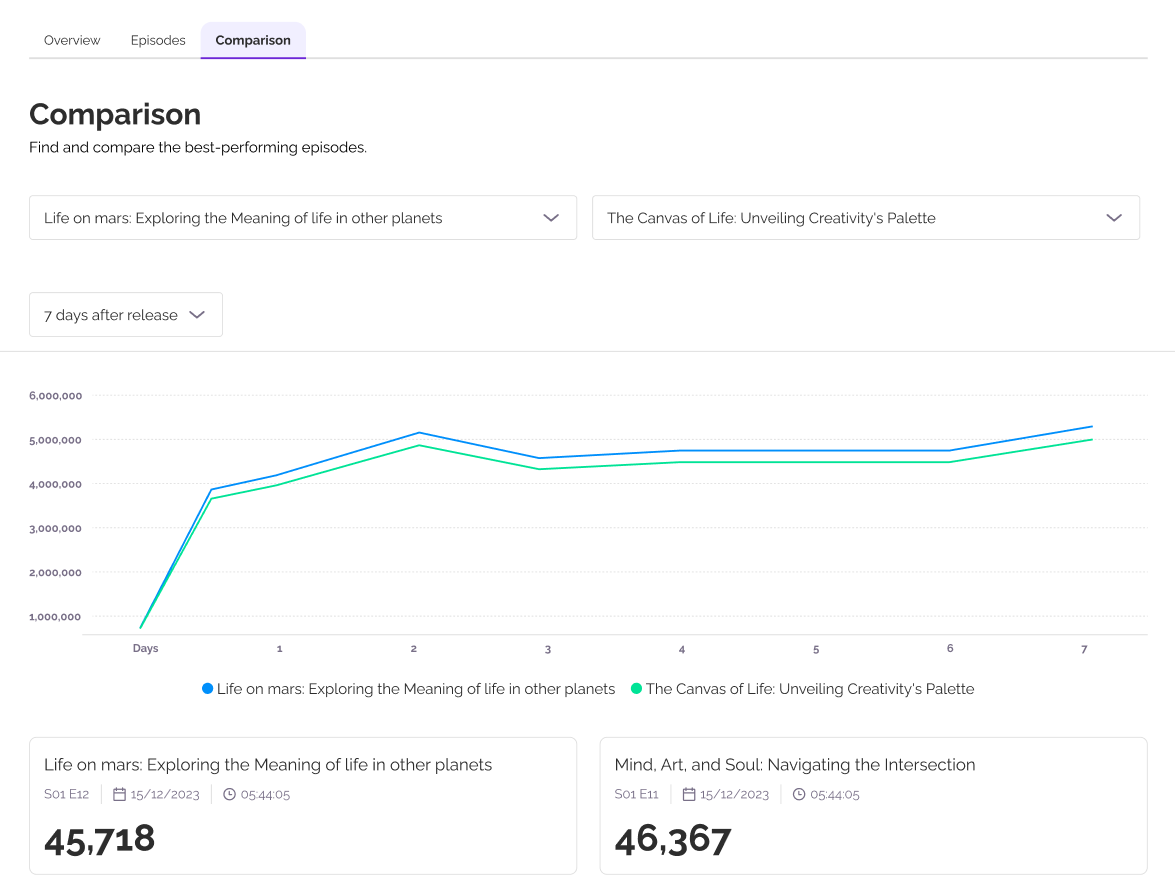
Comparison shows how two episodes performed from the day each one was released, so you can see which one gained traction faster. It is on the Plus, Pro and Max plans.
- Go to Analytics and open the Episodes tab.
- Tick the box next to two episodes in the table.
- Click Compare in the bar at the bottom of the page.
The comparison opens on its own page. Use the date menu to choose how many days after release to compare, from 7 days to a year. The longest ranges depend on your plan. To change an episode, search for another one by its title.
Was this article helpful?
That’s Great!
Thank you for your feedback
Sorry! We couldn't be helpful
Thank you for your feedback
Feedback sent
We appreciate your effort and will try to fix the article