To add or update your podcast categories, follow these steps:
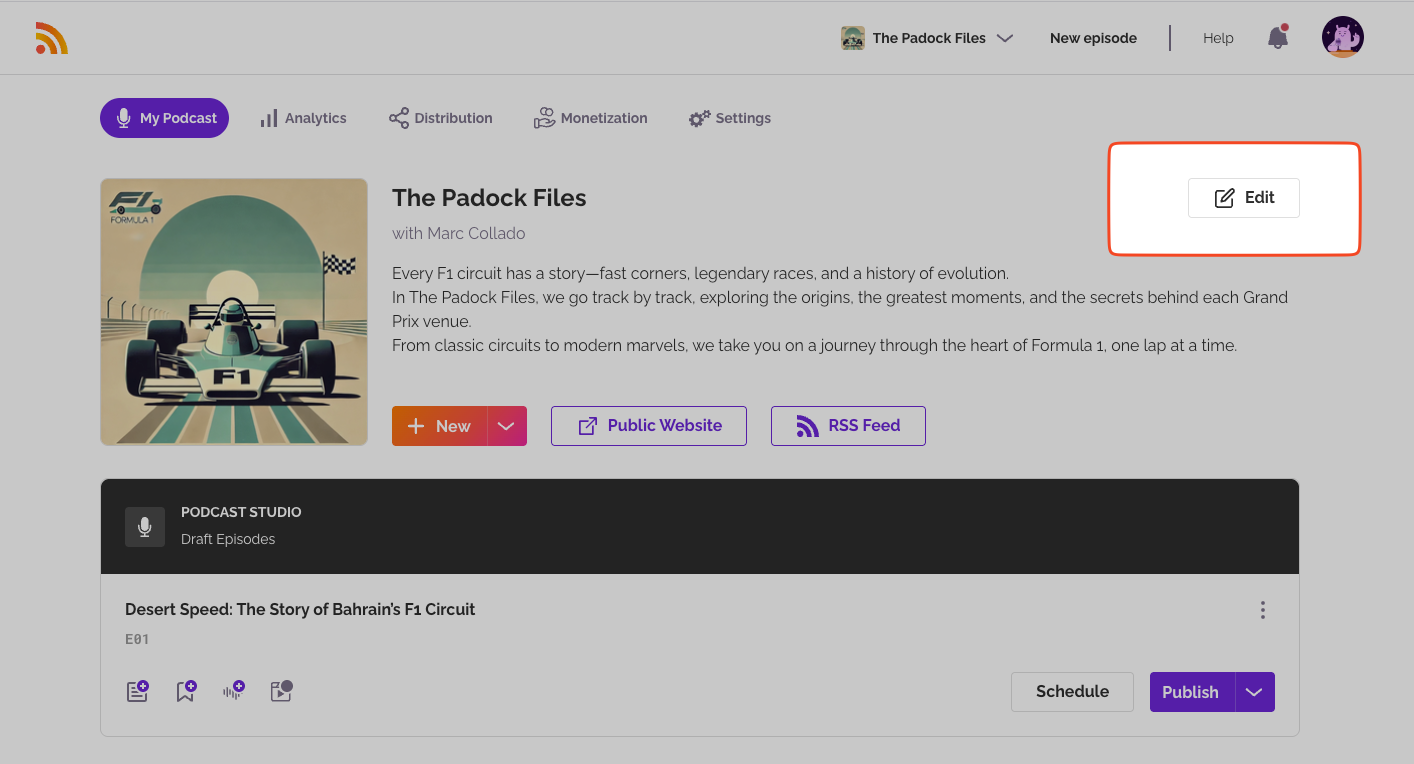
- Open the "My Podcast" tab.
- Click the "Edit" button next to your show.
- Scroll down to "Podcast Details", look for "Categories" and select a category with a limit of two.
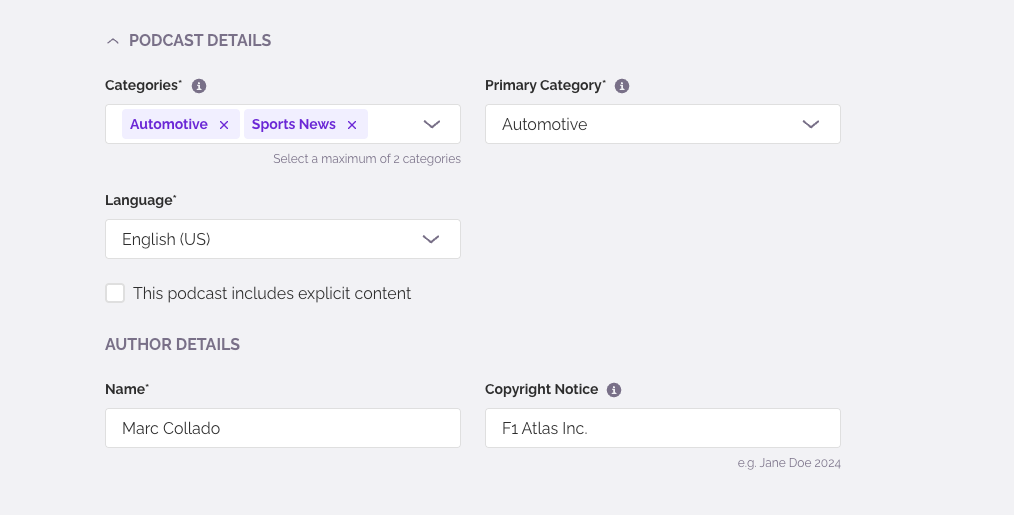
- Select which will be your primary category. Keep in mind that categories help listeners discover your podcast at distribution platforms like Spotify or Apple Podcasts. You can select up to 2 categories, but your Primary Category is the most important because Apple Podcasts will only index your show under your Primary Category.
When you have finished configuring your categories, click the save button and your categories are updated.
Will changes appear on platforms like Apple, Spotify, Amazon, or Pandora?
Yes! When you update your podcast’s title, description, categories, artwork, or episode details, RSS.com automatically updates your RSS feed in real time.
Most podcast directories, including Apple Podcasts, Spotify, Amazon Music, Pandora, and many others, pull this data directly from your RSS feed. Apple Podcasts and Spotify can take up to 24 hours to pick up your changes.
Important: Keep in mind that these fields cannot be left empty and changes are saved only after you click the Save button at the bottom.
Was this article helpful?
That’s Great!
Thank you for your feedback
Sorry! We couldn't be helpful
Thank you for your feedback
Feedback sent
We appreciate your effort and will try to fix the article